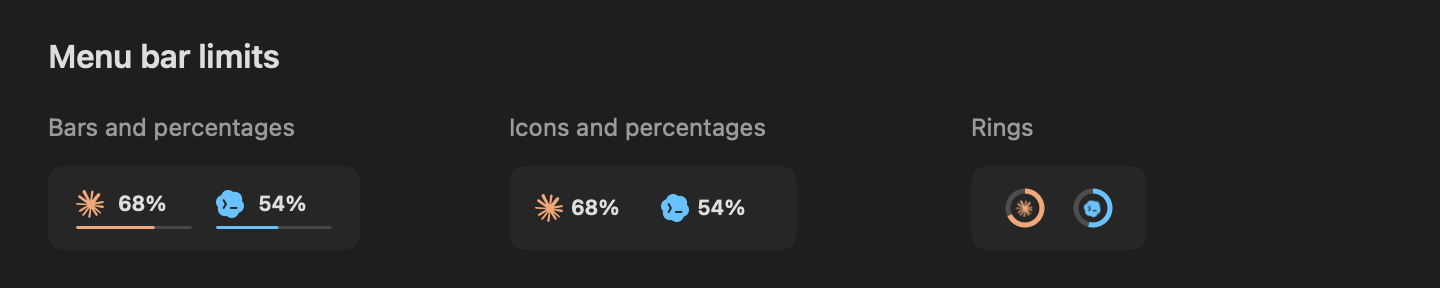
Available in Lunavect 0.1.1 and later. Open Settings → Menu Bar → Limits and enable Show remaining limits. Choose all connected services, Claude or Codex, then select the weekly or five-hour window.
Click an indicator to open the details panel with percentages, reset countdowns and exact local reset dates. The panel can refresh existing sources or change the selected window. Its slider button, labelled Menu Bar in its tooltip, always opens Settings → Menu Bar; Details opens the full Limits page. Both remain available when the animated character is hidden.
Icon color and Bar color or Ring color are independent. Each offers System and Service color. The system option follows the light or dark menu bar. Saved color choices persist across styles.
Show time until reset is off by default. Explicitly saved choices survive upgrades. Countdown values come from the actual reset timestamp. Hiding the countdown preserves the bar layout’s width and icon positions; numeric columns accommodate 100%*, 0% and unavailable values without shifting neighboring items.
The indicator reads existing quota snapshots, without extra provider requests. A local timer updates countdowns and freshness every 30 seconds, including an immediate check after wake.
0% and an empty meter.The Session status section has its own Show work icon and status switch and animation, color and text settings. Limits and session status can be hidden independently. Turning off both leaves desktop widgets available.
The Icon appearance group exposes character selection, automatic mode, color and animation directly. Optional activity phrases work in all three status styles.
Hiding session status stops its animation timers while activity collection and quota refresh continue. Reopening Lunavect from Applications or Spotlight opens Menu Bar settings when session status is hidden, so the switches remain reachable. Upgrades preserve existing selections.
See recorded verification for the current release checks and remaining live-interface coverage.